
Are the passwords saved in your browser safe?

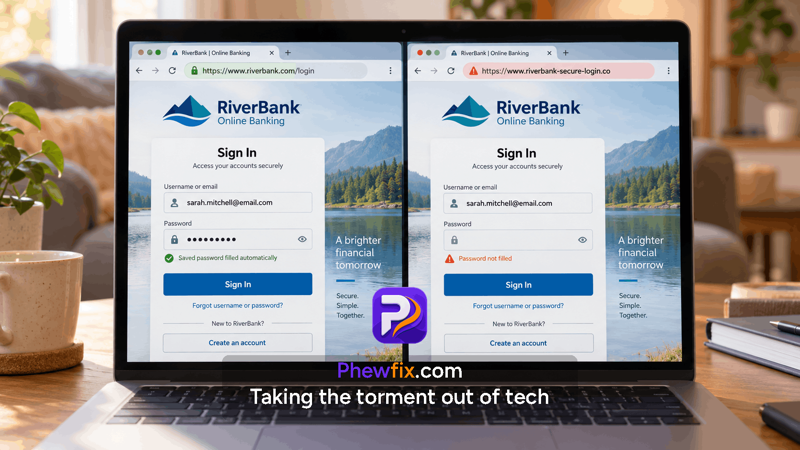
That can be very useful. It means you don’t have to remember dozens of different passwords, and you’re less likely to reuse the same password everywhere.
But how safe are those saved passwords?
The short answer is: they are generally safe for everyday use, as long as you protect your computer properly.
What if someone uses my computer while I’m away?
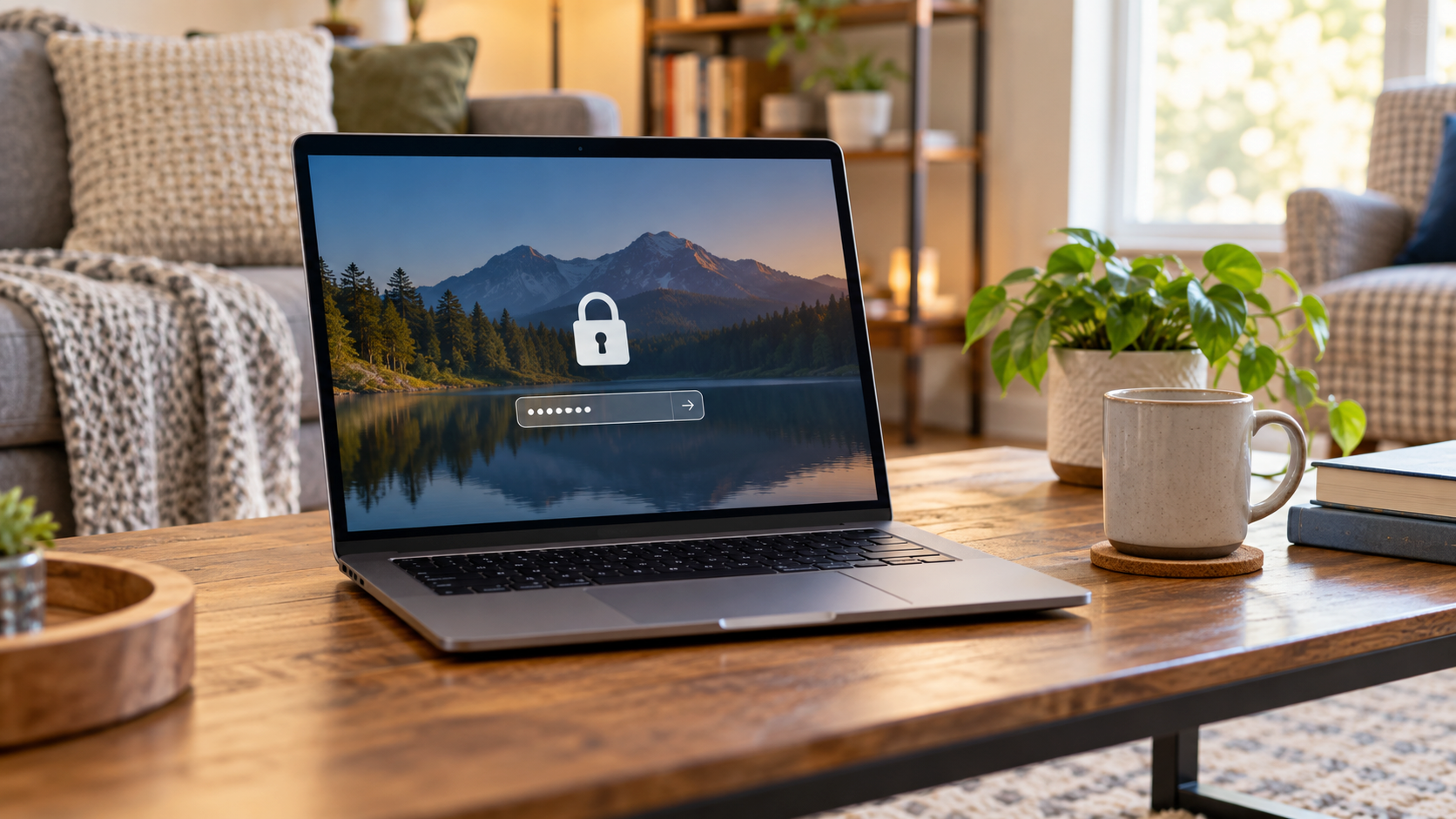
Imagine you leave your laptop open on the table while you make a coffee.
If someone sits down at it, they probably won’t see a big list showing all your passwords.
But they may not need to.
Your browser can automatically fill in a saved username and password when someone visits a website.
So if your computer is already unlocked, another person may be able to open your email, shopping accounts or other websites without ever knowing the actual password.
Accounts you are already signed into may be even easier to access.
The best protection is simple: lock your computer when you walk away.
On Windows, press Windows key + L.
On a Mac, you can use Control + Command + Q.
It is also a good idea to set your computer to lock itself automatically after a few minutes.
Is saving passwords in my browser a bad idea?
No.
In fact, saving passwords can be safer than trying to remember them all yourself.
It makes it much easier to use a different password for every website.
That is important because if one company suffers a data breach and your password is stolen, attackers cannot simply use the same password to get into all your other accounts.
A saved password can also be very long and complicated because you don’t have to remember it yourself.
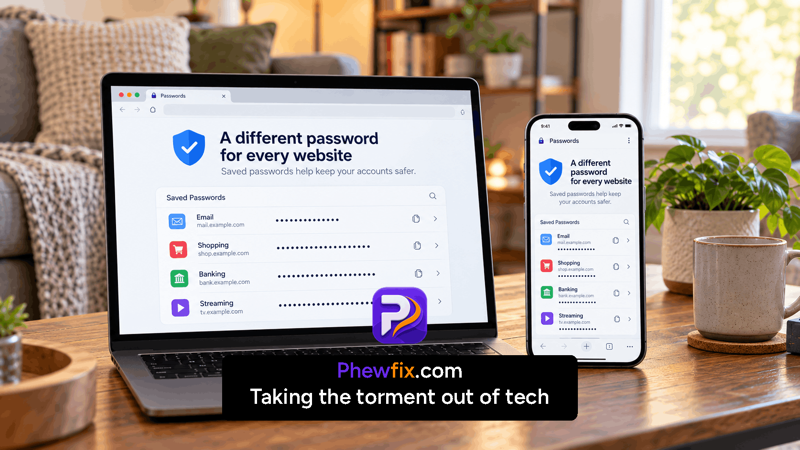
Where are my saved passwords kept?
Your browser normally stores your saved passwords as part of your browser profile on your computer.
Browsers such as Chrome, Edge, Firefox and Safari can also synchronise passwords between your devices.
For example, a password saved on your laptop may also become available on your phone.
That can be very convenient.
But it also means that the account used for synchronisation becomes important.
If somebody gains access to that account, several saved passwords could potentially be at risk.
Should I use password syncing?
For many people, syncing passwords is useful.
If your computer dies or your phone is lost, your passwords can still be available on another device.
Without syncing, passwords stored only on one computer could disappear if that computer fails.
If you use password syncing, make sure the account controlling it has:
A strong, unique password
and
Two-step verification or two-factor authentication, where available.
This usually means that logging in requires something extra, such as a code sent to your phone or an authentication app.
What about someone stealing my laptop?
A password on your Windows or Mac account helps protect your information, but only when the computer is actually locked.
It is also a good idea to have the computer's built-in drive encryption enabled.
On modern Macs this is called FileVault.
On Windows it may be called BitLocker or Device Encryption.
Encryption helps protect your files if somebody physically steals the computer and tries to access the drive without knowing your login password.
What if several people use the same computer?
Each person should have their own Windows or Mac user account.
Simply having different browser profiles is not the same thing.
Separate computer accounts provide a much better barrier between one person's files, browser history and saved passwords and another person's.
<image here of computer login screen showing several user accounts>
Do I need a separate password manager?
Not necessarily.
Browser password managers are perfectly suitable for many people.
Separate password managers such as Bitwarden, 1Password and others can be useful if you regularly use several different browsers, computers or phones.
They normally keep your passwords inside an encrypted digital vault protected by one main password.
That main password is extremely important.
If you use a separate password manager, make your main password long, unique and something you do not use anywhere else.
Saved passwords can also help protect you from scams
Saved passwords can also help protect you from scams
This is one of the biggest advantages of saving passwords that many people don't realise.
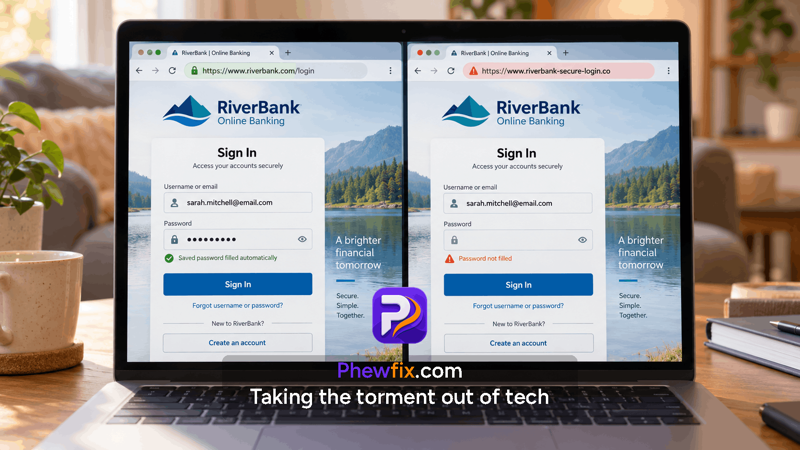
Imagine you receive an email supposedly from your bank.
You click the link and arrive at a website that looks exactly like your bank's website.
But it is actually a fake website created by scammers.
Your browser usually will not automatically fill in your saved bank password, because the website address does not match the genuine bank website.
That empty password box can therefore be an important warning sign.
If you normally expect your browser to fill in your password and suddenly it doesn't, stop and check the website address before typing anything.
Never save passwords on somebody else's computer
Password saving and syncing should only be used on devices you trust.
Do not save your passwords on:
A public computer
A library computer
A hotel computer
A work or shared computer you don't control
Someone else's laptop
If you need to use one of these computers, log out when you're finished and don't allow the browser to save your password.
So, should I save passwords in my browser?
For most people, yes.
Saving passwords makes it much easier to use strong, different passwords for every website.
The important part is protecting the computer and account that holds them.
Remember these basics:
- Lock your computer when you walk away.
- Use a different password for every important account.
- Use two-factor authentication where possible.
- Keep Windows, macOS and your browser up to date.
- Never save passwords on a public or untrusted computer.
And if your browser normally fills in a password but suddenly doesn't, check that you are really on the correct website before typing it yourself.
Need help?
Need help with your browser, online security or other tech issues?
Visit Phewfix.com
Phewfix — Reducing tech torment.